
Browser GUI walkthrough#
The primary GUI is the local browser app (mcf.gui() / mcf-web). Both GUIs
drive the same McfSession. Desktop twin:
mcf.gui_qt() (PySide6).
pip install "multicolorfits[all]"   # or [web]
mcf-web                            # opens http://127.0.0.1:8321
# python -c "import multicolorfits as mcf; mcf.gui()"
Preload:
import multicolorfits as mcf
mcf.gui(files=['a.fits', 'b.fits'], colors=['#C11B17', '#4CC417'], labels=['Hα', 'OIII'])
# mcf.gui(state='session.json')
Choosing a browser#
By default the GUI opens in your system default browser. To pick one explicitly:
mcf-web --browser firefox
mcf-web --browser google-chrome
mcf-web --no-browser          # print the URL only; open it yourself
mcf.gui(browser='firefox')
mcf.gui(browser='google-chrome')
mcf.gui(open_browser=False)   # then visit the printed http://127.0.0.1:… URL
Names are those understood by Python’s webbrowser
module (firefox, google-chrome, chromium, safari, …), or a full path
to an executable. On Unix you can also set the BROWSER environment
variable for the default case (no --browser / browser=).
For Jupyter / Colab embedding see gui_notebook_embed.
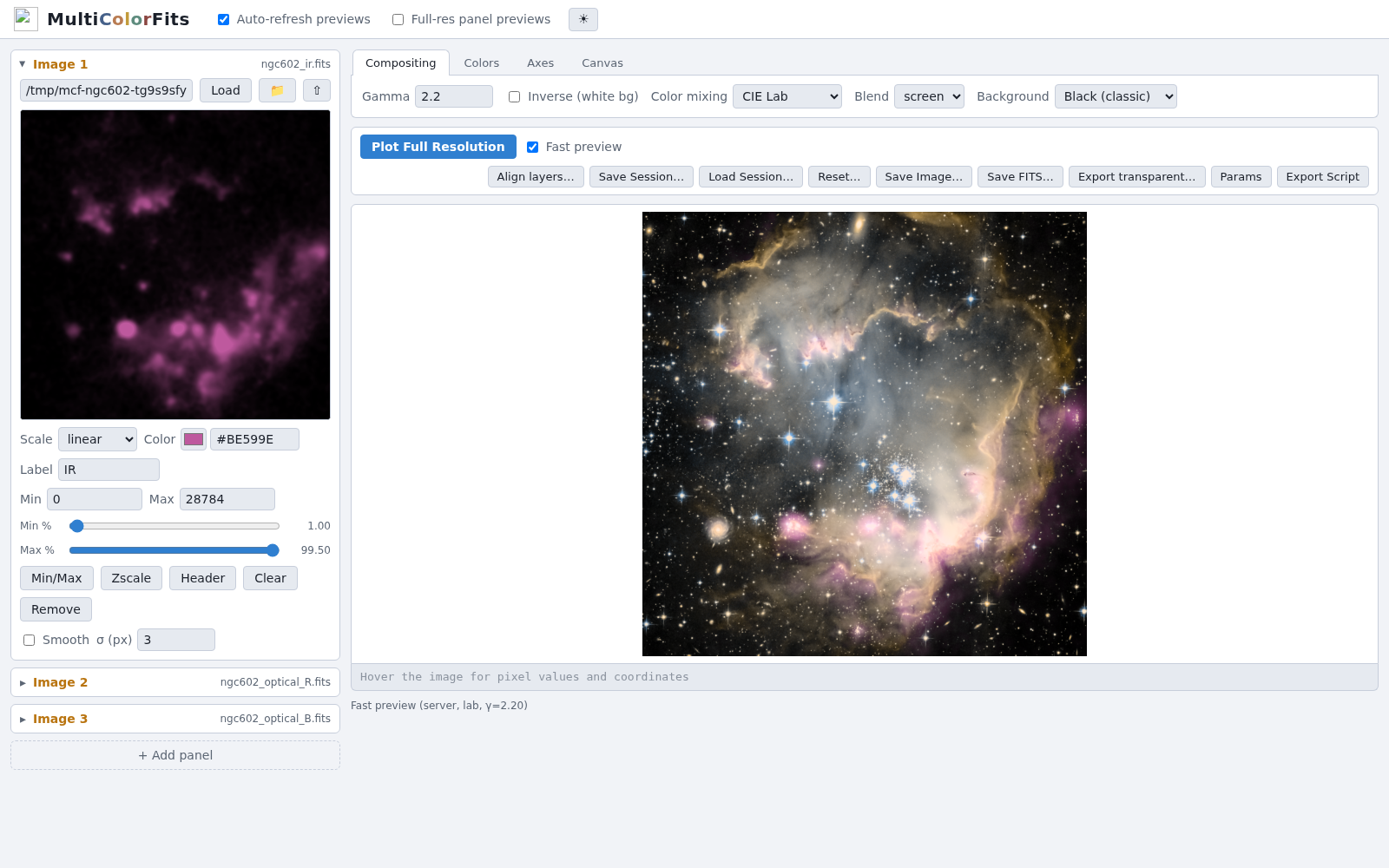
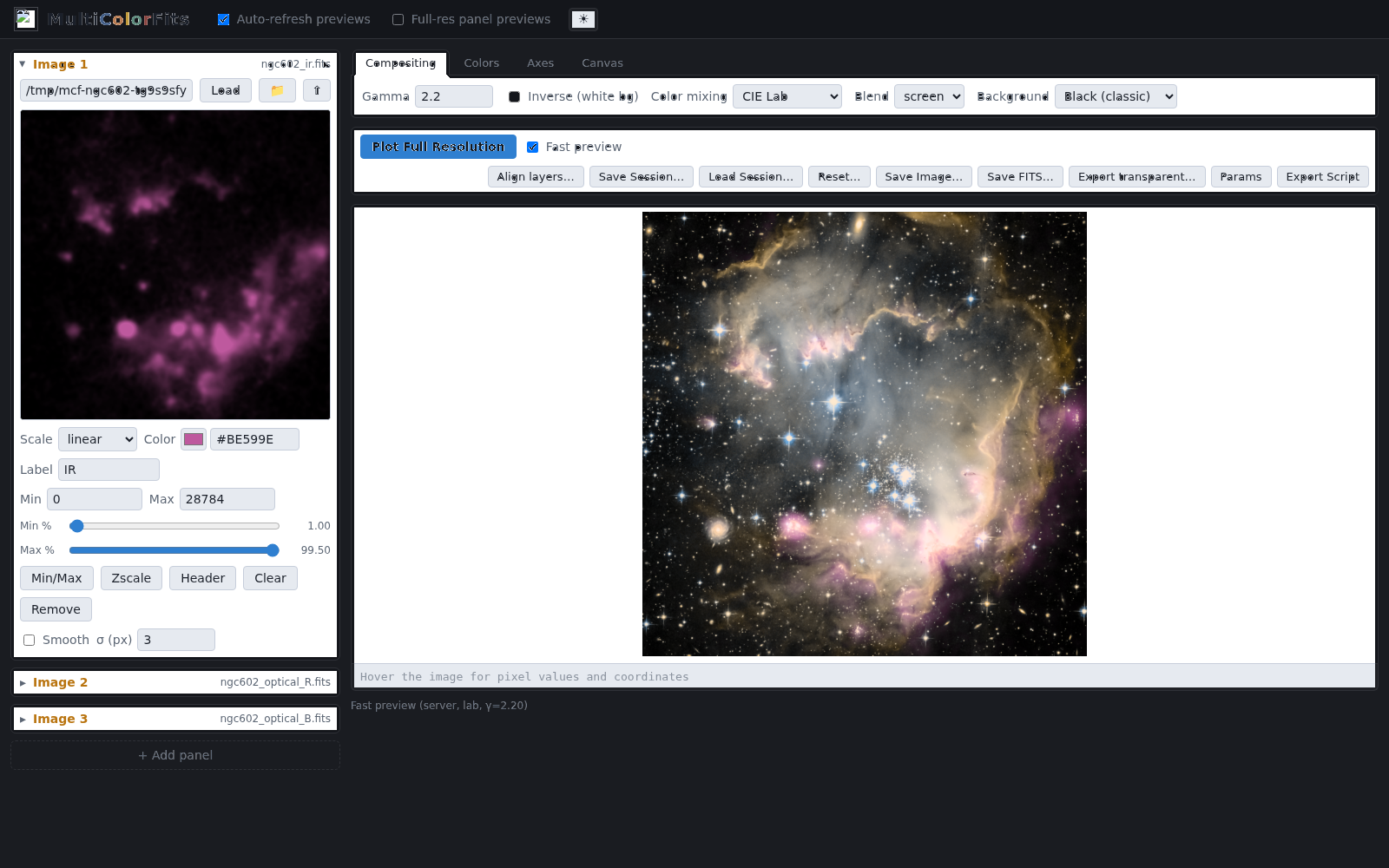
Layout#
Region |
Purpose |
|---|---|
Left column |
Image panels (stretch, color, levels, header, clear/remove) |
Right compose tabs |
Compositing / Colors / Axes / Canvas |
Combined view |
Fast preview (downsampled, on by default) or full WCS plot |
Action bar |
Plot Full Resolution, session save/load, Save Image/FITS, Export transparent, Export Script, Reset |
Header toggles: Auto-refresh previews, Full-res panel previews, and
light/dark theme (?theme=light\|dark also works for screenshots).
Image panels#
Load FITS via path, folder browse, or upload (web).
Set stretch, hex color, label, vmin/vmax or percentile sliders, optional smooth.
Use Zscale / Min/Max as needed; Header to inspect/edit cards.
Default is four panels. Click + Add panel for more (up to 16), or Remove on a panel you no longer need.
Layers must share a pixel grid. When they do not, a warning bar offers
Align layers… (needs [reproject]) — reproject onto the reference panel or
into ICRS / Galactic / …
Compose tabs#
Compositing — mode (
rgb,lab,hsv,hsl,ryb,cmyk), blend (Lab family), background (black / white / transparent / custom), gamma. Gamma applies to the combined image; left-panel thumbnails intentionally ignore it.Colors — curated palette apply, hue tune wheel, color-vision safety report.
Axes — WCS tick style, title, labels, legend, combo swatch, band labels.
Canvas — facecolor (incl. transparent), overlays (compass / beam / scale bar when
[overlays]is installed).
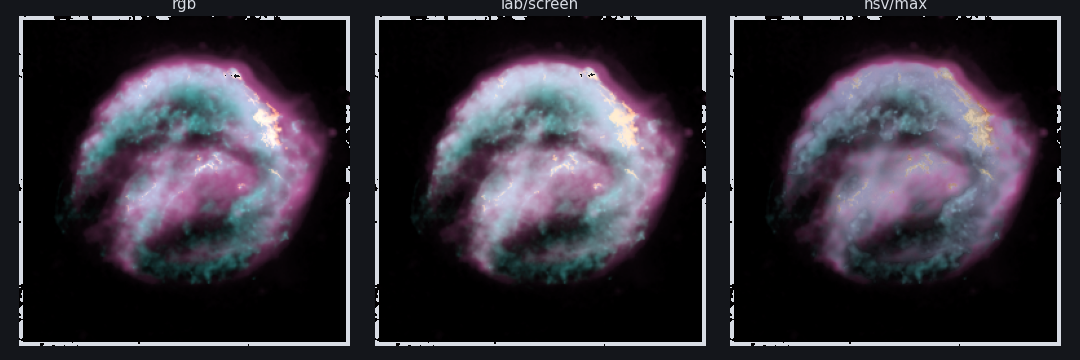
Mode dropdown (same session, different combine strategies):
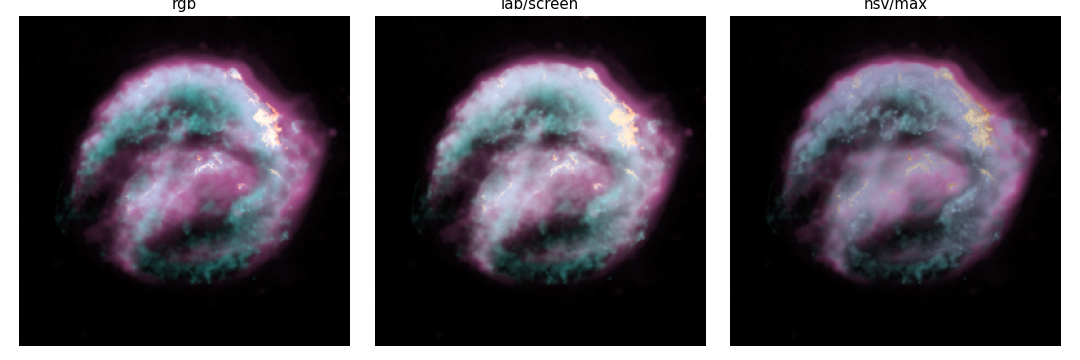
Fast preview (checked by default) updates the combined view from the same downsampled buffers as the left panels — good for stretching, colors, mode, and gamma. Click Plot Full Resolution when you want the publication WCS figure (axes, overlays) used by Save Image / Export Script.
Backgrounds and RYB paint#
These three panels are what the Compositing tab is driving (same linear stretch for a fair RGB vs RYB comparison):
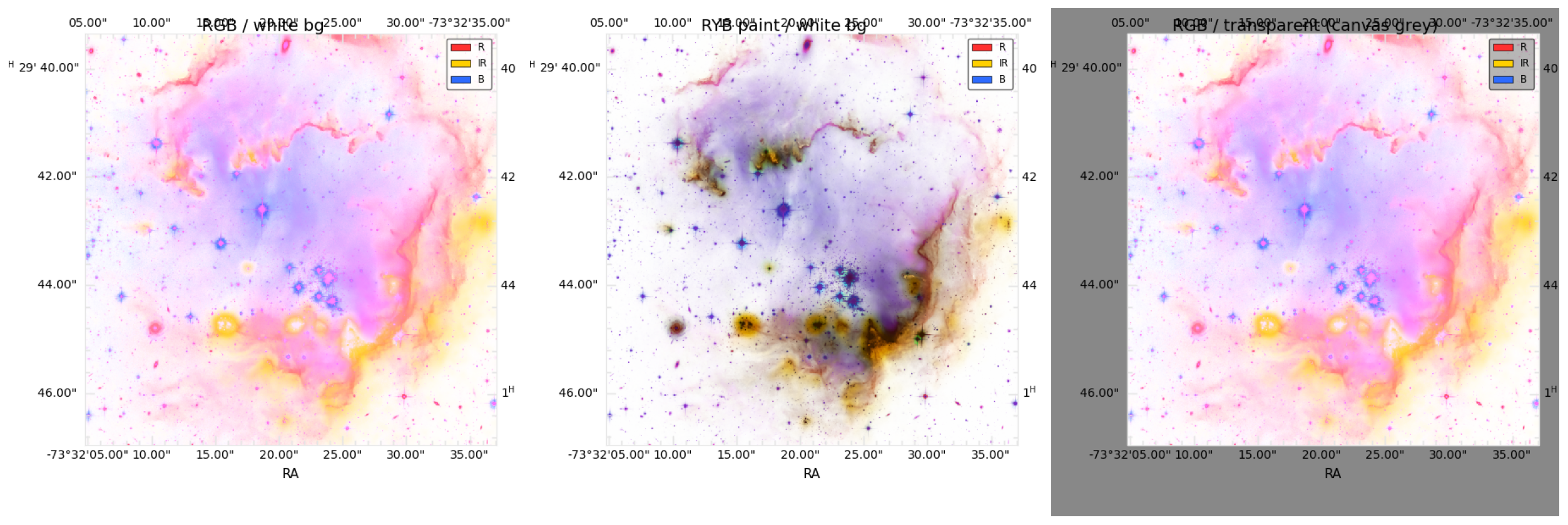
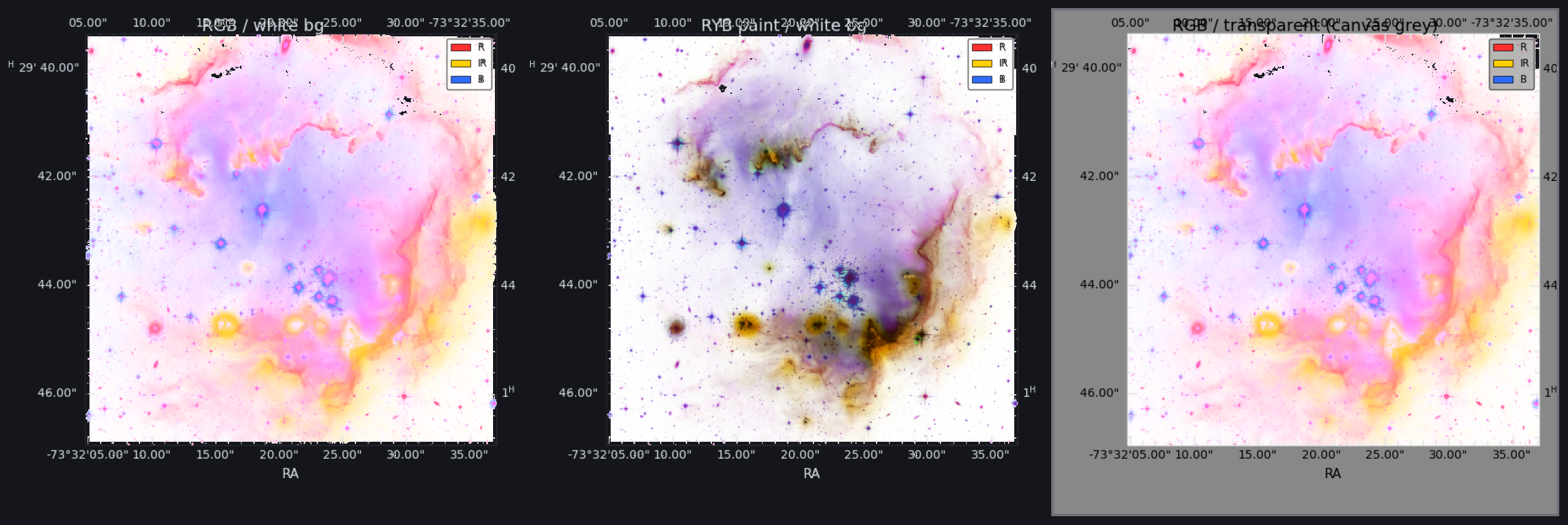
See also Backgrounds and RYB paint mixing and Color-space compositing suite.
Save and export#
See save_and_export and saving_outputs:
Save Session… → JSON (paths + settings)
Save Image… → format from extension
Save FITS… → RGB cube + provenance
Export transparent… → RGBA stamp
Export Script → recreation
.py
Qt desktop GUI notes#
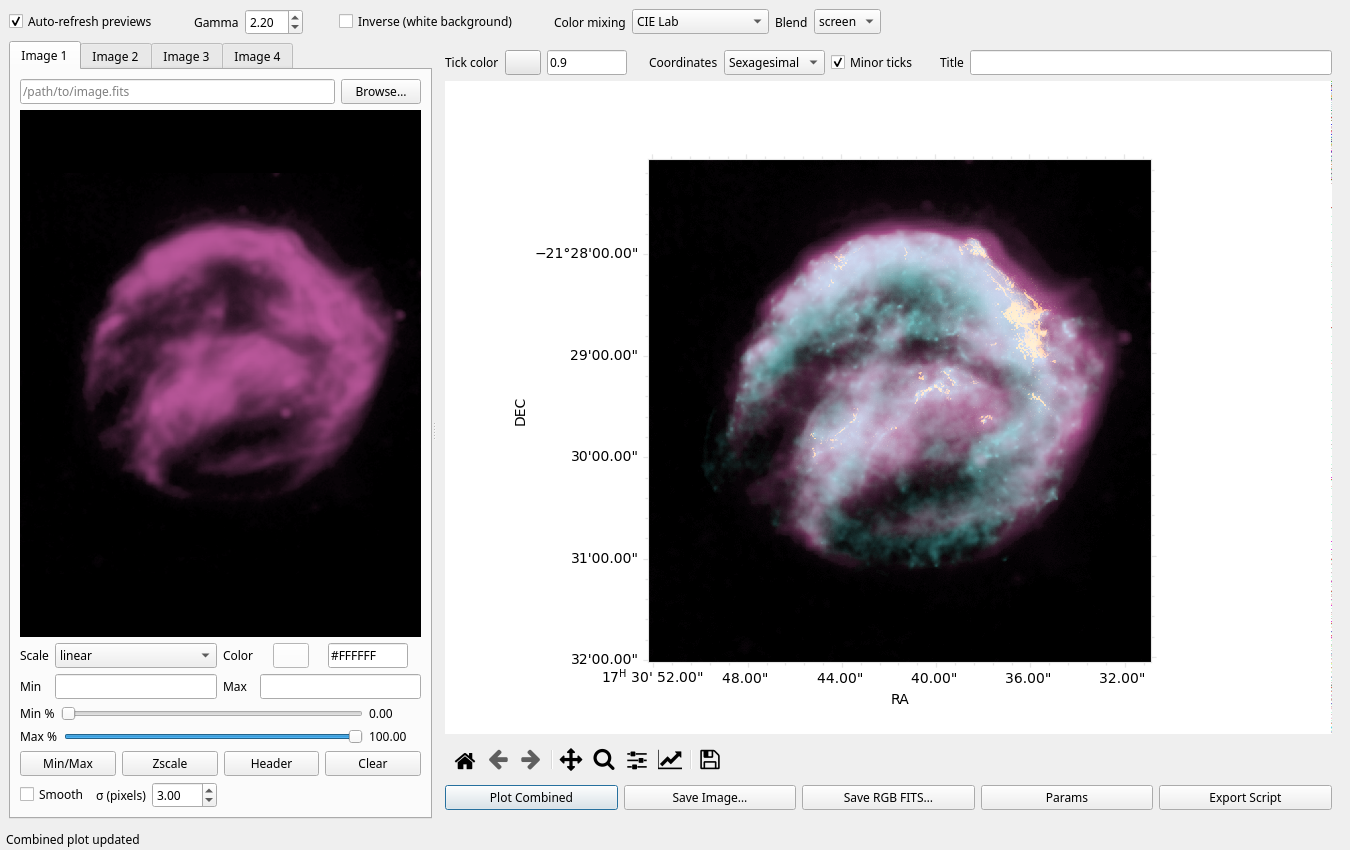
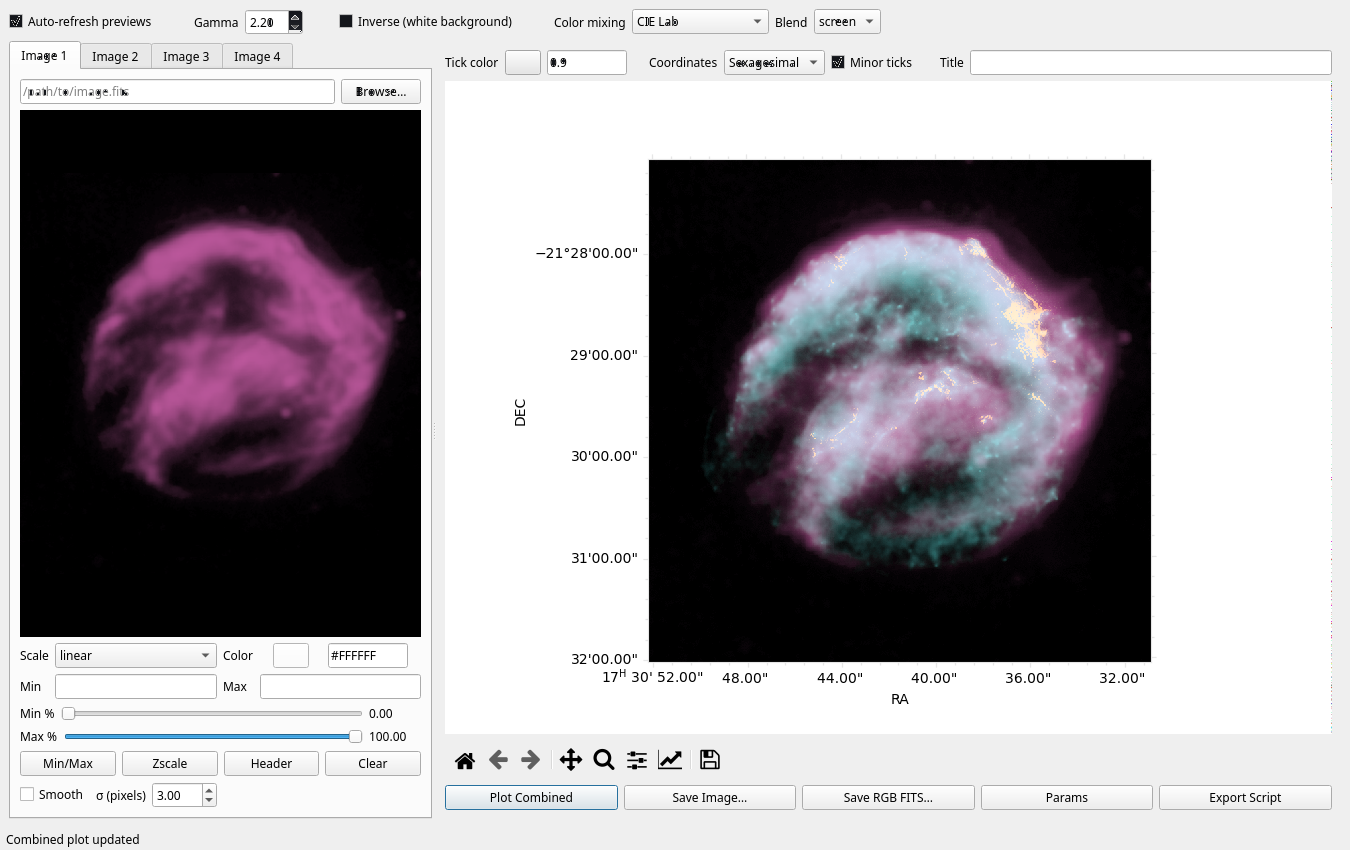
Same session model and most controls. Browser tends to get new features first. The Qt combined canvas keeps the matplotlib navigation toolbar; panel previews are simpler QLabels.
More Qt / classic result shots: Gallery.