
M74 — transparent cutouts for slides & stamps#
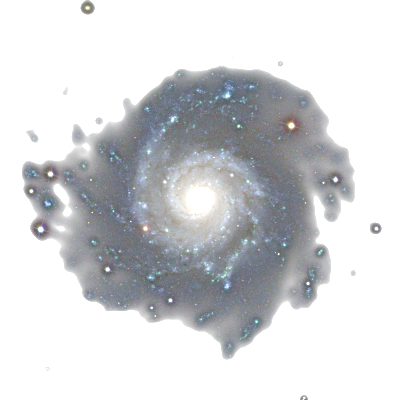
That image above has no background — it is a genuine RGBA PNG, and the docs page shows through where the sky used to be. Toggle the site light/dark theme and watch the “sky” follow. That is the whole point: one export that drops onto any slide, poster, or web page.
M74 (NGC 628) here is an SDSS gri composite. Any RGB composite works — including ones made entirely outside multicolorfits.
You will learn how to:
turn an RGB composite into a transparent-sky RGBA cutout (
make_transparent_cutout),control the fade with
alpha_lo/alpha_hi/alpha_gamma,preview against checkerboard / dark / light backgrounds before exporting,
export straight from a session (
export_transparent_cutout) or the GUI,recover RGBA from an image already flattened onto a solid color (
deblend_background— the exact inverse operation).
Concepts: Saving outputs. Related: white / transparent combine backgrounds in Color compositing.
From composite to cutout#
import multicolorfits as mcf

# rgb: any (ny, nx, 3) float composite in [0, 1] — here from a session.
# gri mapped straight to R/G/B channels ≈ true color: blue arms, warm core.
s = mcf.McfSession(n_panels=3)
s.load_files(['m74_sdss_i.fits', 'm74_sdss_r.fits', 'm74_sdss_g.fits'],
             colors=['#FF0000', '#00FF00', '#0000FF'],
             labels=['i', 'r', 'g'])
for p in s.panels:
    p.stretch = 'asinh'
    p.set_percentiles(30.0, 99.5)
rgb = s.render_combined()

rgba = mcf.make_transparent_cutout(
    rgb,
    alpha_smooth=3,             # blur the matte's intensity map (px) —
                                #   follow whole arms, not pixel noise
    alpha_hi=90,                # opacity threshold: this bright and up = opaque
    alpha_lo=60,                # fully transparent at/below this percentile
    alpha_gamma=0.4,            # fade shape between them (<1 = bolder body)
    crop='auto', pad=0.06,      # trim empty sky, keep a 6% margin
)
mcf.save_transparent_cutout(rgba, 'm74_stamp.png')
The matte is a thresholded fade built from the composite’s luminance:
everything at or above the alpha_hi percentile is fully opaque, and alpha
ramps down (shaped by alpha_gamma) to fully transparent at alpha_lo.
crop='auto' then trims the frame to the non-transparent content, and
size= (e.g. size=512) downsamples for a web-friendly stamp.
Three things make this recipe hold up on a white slide:
Channel colors — if every band gets a warm/near-white tint, the composite itself is white-ish and no alpha trick will make it read against white. Near-true-color channels keep the arms visibly blue.
alpha_smooth— a per-pixel matte lets noise punch pinholes through the arms, so they never read as solid. Blurring the intensity map (the RGB data is untouched) by a few pixels makes the matte trace coherent structure: whole arms cross the threshold together and stay opaque.The threshold placement —
alpha_hi=90puts full opacity at the arm level rather than only the core, whilealpha_lo=60cuts the smoothed sky to exactly zero, so no faint haze rectangle outlines the frame when the stamp is layered over other content.
Check it before you ship it#
fig = mcf.preview_cutout_on_backgrounds(rgba)   # checkerboard / dark / light
fig.savefig('m74_preview.png', dpi=110)
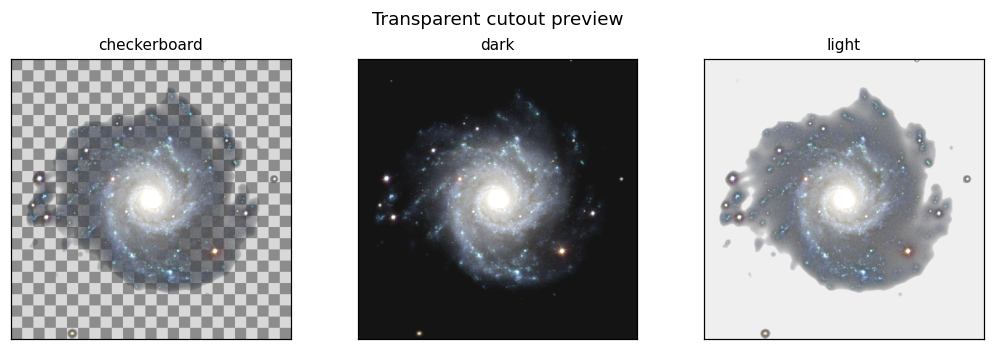
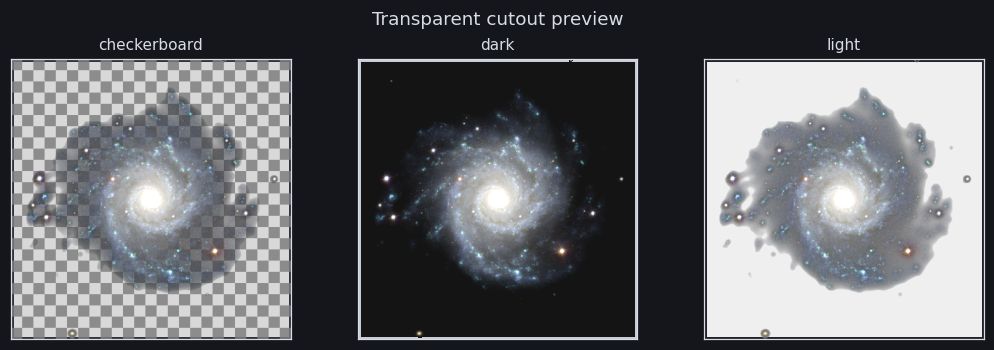
The light-background panel is the acid test: faint outer structure that looks fine on black can read as smudge on a white slide.
Shaping the fade — alpha_gamma#
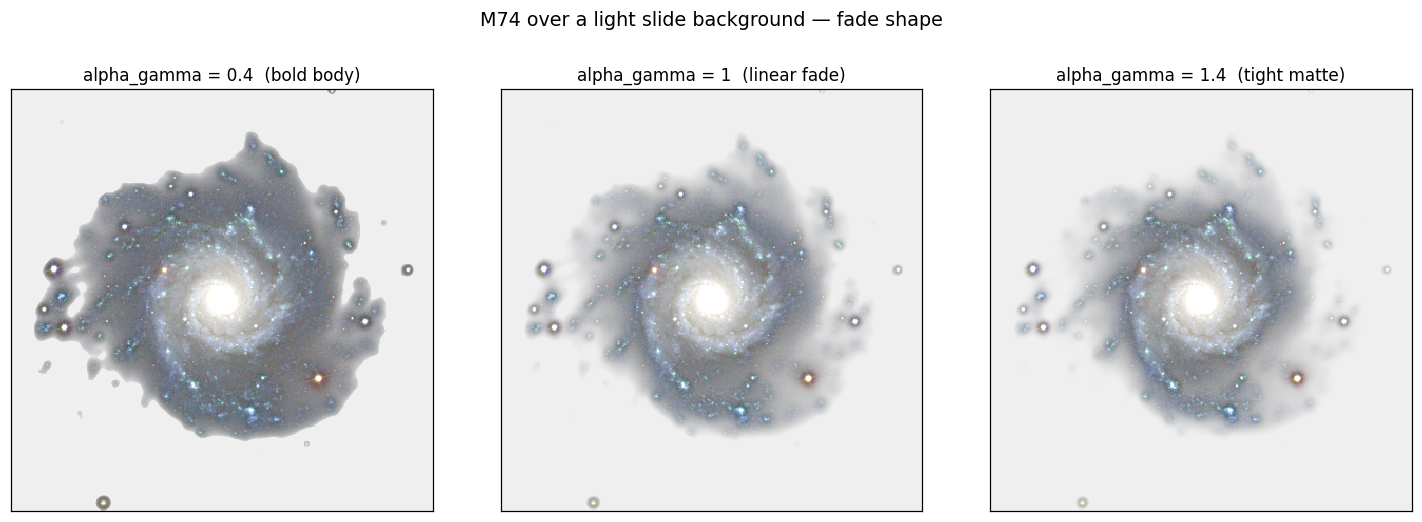
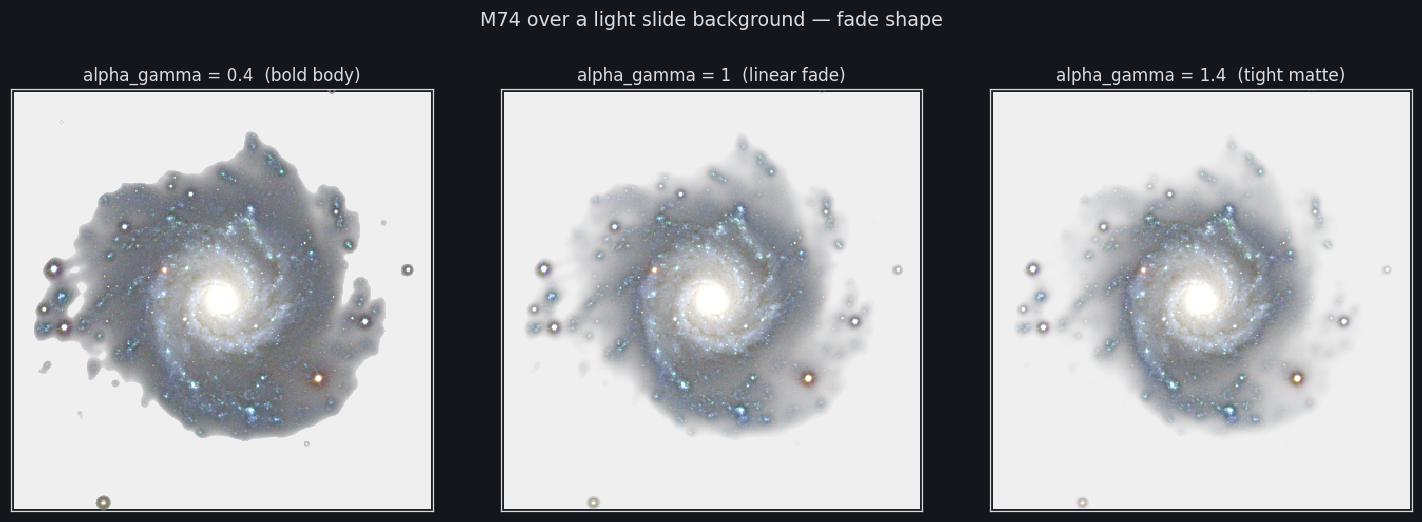
alpha_gamma accepts any value above zero and shapes the fade between the
alpha_lo and alpha_hi percentiles. Below 1 it bends the ramp so
mid-brightness disk pixels stay mostly opaque; 1 is a linear fade that thins
the whole object; above 1 it works the other way, tightening the matte so
only the brightest structure — the arm ridges and core here — gets through
at high opacity:
Rules of thumb:
dark decks — linear (
alpha_gamma=1) often looks airier;light decks / print —
alpha_gamma≈0.3–0.5keeps the body solid;busy backgrounds / small stamps —
alpha_gamma>1(e.g. 1.4) trims the faint skirt so just the crisp bright skeleton overlays cleanly;crank
alpha_loup if sky noise survives (or a faint haze box outlines the frame when overlaid); loweralpha_hito push full opacity further out from the core into the arms;raise
alpha_smoothfor softer, more coherent outlines (it also rounds the cutout rim — drop it back toward 0 if you want crisp per-pixel detail at the edge).
Other useful knobs: matte='circle' / 'ellipse' for a geometric window,
soft_edge= for a Gaussian-feathered rim on the finished alpha,
alpha_source='layer' to drive the matte from one specific band, and for
composites that don’t sit on black, alpha_source='dist' with
sky_color='white' (or any color) mattes by distance from the background
color — dark features survive a white-background cutout, where plain
luminance would erase them (invert=True is the simple version for
grey-scale-like cases).
One-liners from a session or the GUI#
# Straight from the session — renders transparent, mattes, crops, saves:
s.export_transparent_cutout(size=512, savepath='m74_stamp.png',
                            alpha_smooth=3, alpha_lo=60, alpha_hi=90,
                            alpha_gamma=0.4, crop='auto')

# Batch a set of composites with shared settings:
stamps = mcf.batch_transparent_cutouts([rgb1, rgb2, rgb3],
                                       alpha_smooth=3, alpha_gamma=0.4,
                                       size=256)
Both GUIs expose the same export as Export transparent… (web:
POST /api/export/cutout).
Tip
Transparent cutout vs transparent background: combine_background = 'transparent' (see Color compositing) makes the compose
canvas transparent but keeps the full frame. make_transparent_cutout
additionally mattes the sky inside the image and crops — that’s what
you want for stamps and overlay art.
The reverse direction — deblending a flattened image#
make_transparent_cutout estimates a matte from brightness. Its sibling
deblend_background solves for one: if an image was already flattened
onto a known solid color (a JPEG/PNG figure on white, a screenshot on a
slide background), the compositing equation
(C = \alpha F + (1-\alpha) B) can be inverted per pixel for the minimum
(\alpha) whose foreground stays inside the RGB gamut — a closed-form,
fully vectorized solve that works for any background color, and keeps
dark features that a luminance matte would erase:
flat = plt.imread('figure_on_white.png')[..., :3]   # any flattened RGB
rgba = mcf.deblend_background(flat, background='white')   # or any color
mcf.save_transparent_cutout(rgba, 'recovered.png')

# Round trip is exact (up to 8-bit quantization, absorbed by tol=):
back = mcf.flatten_rgba(rgba, background='white')
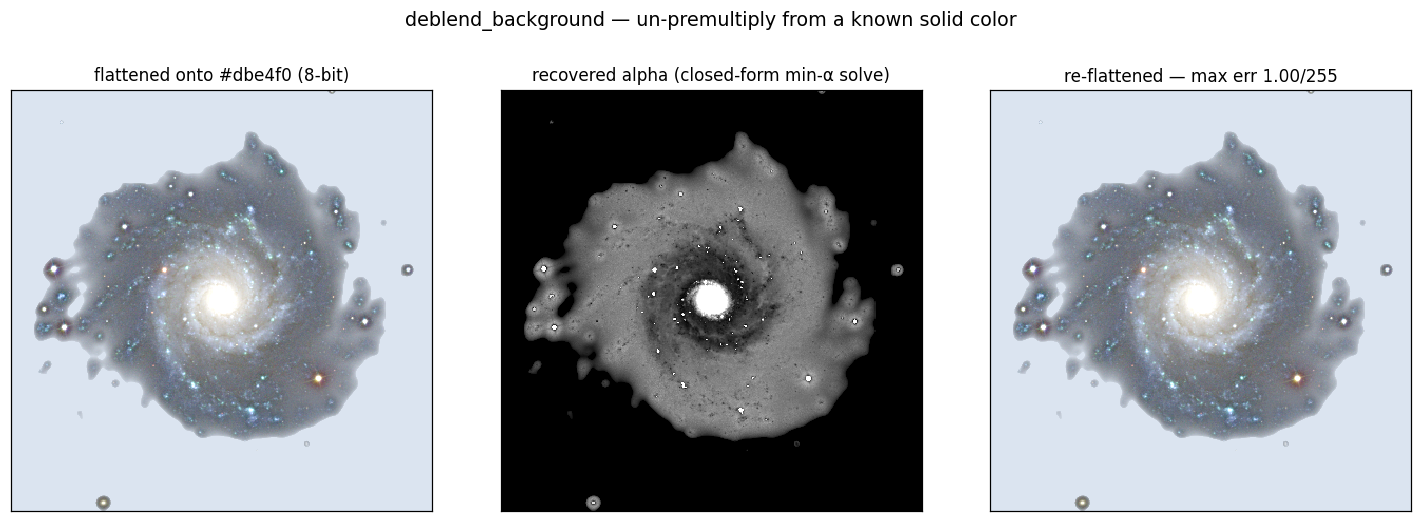
The middle panel is the recovered alpha — solved, not guessed — and
re-flattening the result onto the same color reproduces the input to within
one 8-bit step. The same matte-shaping knobs from above (alpha_smooth,
alpha_lo / alpha_hi thresholding, alpha_gamma, matte, soft_edge,
crop, size) are available on deblend_background too; the defaults keep
the physically exact alpha, and the knobs trade exactness for presentation
control.
Note
The recovered foreground uses the standard minimum-alpha convention (maximally transparent, as in color-keying tools) — semi-transparent pixels come back with their color pushed to the gamut boundary. Re-flattening onto any background is still correct; only pixel-level “what was the original foreground color” is fundamentally unrecoverable (3 equations, 4 unknowns).